

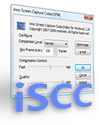
- Overview
- Features
- News
- Installation
- Instruction
What is iSCC?
inno Screen Capture Codec(iSCC) is the most optimized codec for screen recording. This codec offers you a higher compression and faster speed compared to any other codecs even the most popular one, TechSmith Screen Capture Codec(TSCC).
System Requirements
- Windows 2000, XP, or Vista(Windows 9x, and NT will be supported in the future)
- Minimum system requirements to run Windows Media Player
Note
iSCC is not a recording/converting software, only the codec will be provided. There is no decoding limitation for the evaluation version, but "Produced by iSCC" will be displayed on the upper right hand side while encoding using the evaluation version.
Licensing and purchasing information
Please send us an email to [email protected] for licensing and purchasing information.
iSCC Features
- Supports both lossless compression for screen recording and lossy compression for maximum compression
- Faster compression speed for real time recording
- Provides Video for Windows codec and DirectShow Filter based codec
- iSCC Encode Filter: DirectShow Codec(Encoder)
- inno Screen Capture Codec: Video for Windows Codec(Encoder/Decoder)
- Now supports RGB16, RGB24 and RGB32
iSCC News
April 10 2009. iSCC 1.2 - innoheim is pleased to announce the immediate availability of its new screen recording/editing application, CamVerce.
March 24 2009. iSCC 1.1 Beta available
March 18 2009. iSCC 1.0 Beta available
December 29 2008. iSCC 0.9 Beta available
December 5 2008. iSCC 0.9 Alpha available
iSCC installation
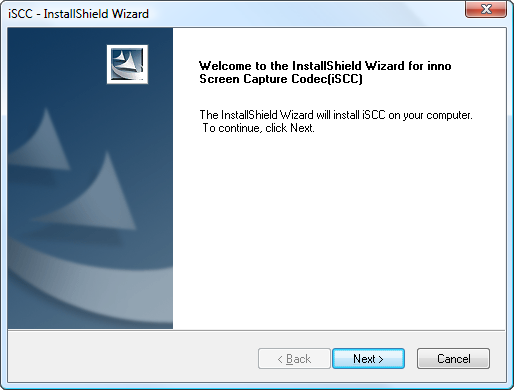
Double click the iSCC installation file and you will see the iSCC installation screen.
Click the Next button to continue
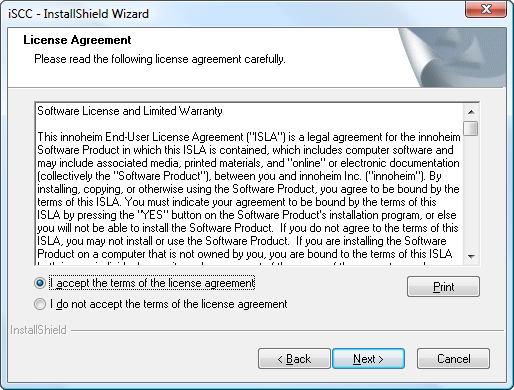
The next screen will display the Software License Agreement. Read it through and select I accept the terms of the license agreement and click the Next button to continue the installation.
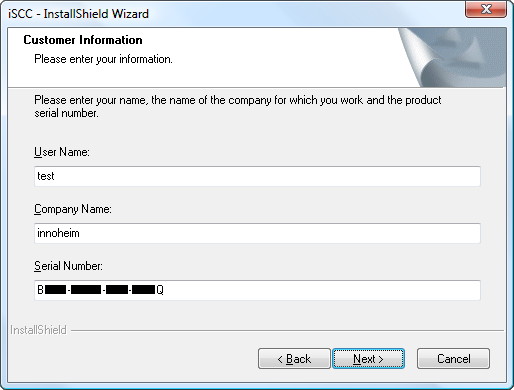
You can enter your Name, Company Name and Serial Number in the next screen. If you are installing an evaluation copy, leave the Serial Number field as "Evaluation" (keep in mind that "Produced by iSCC" , will be displayed when using the evaluation version. )
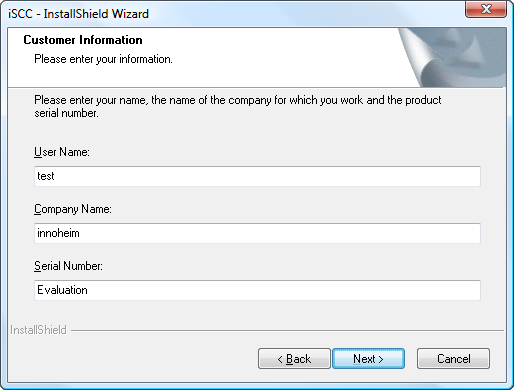
If you have purchased a registered copy and enter the serial number and click the Next button.
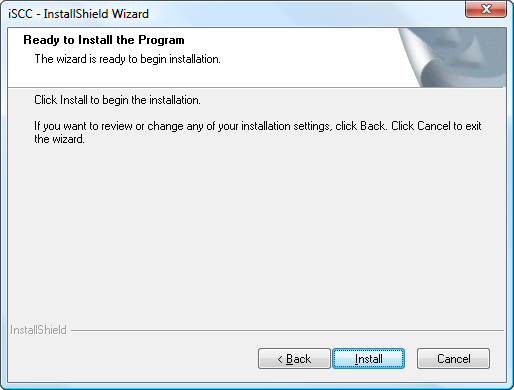
Click the Install button to install iSCC.
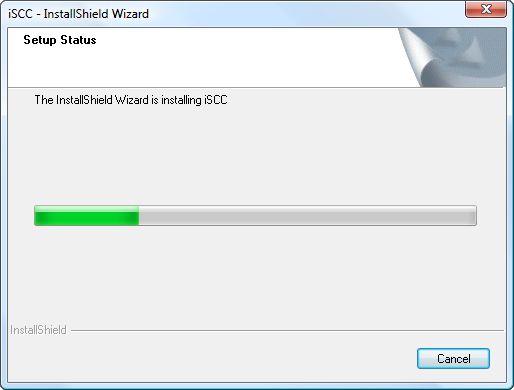
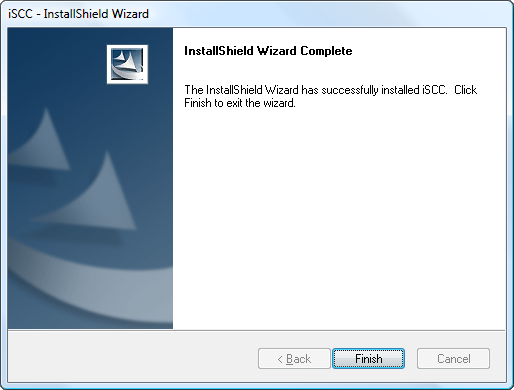
Click the Finish button.
You will see a folder named innoheim > iSCC from the Start menu after it's successfully installed.
After iSCC is successfully installed, you will be able to play AVI files ecoded with iSCC.
Instruction
There are two components in iSCC; Video for Windows(VFW) based inno Screen Capture Codec and DirectShow Filter based iSCC Encode Filter. You can use inno Screen Capture Codec most of the time, and select iSCC Encode Filter on DirectShow Filter based programs if inno Screen Capture Codec is not supported.
Default settings will work on most cases. However, you may change the settings if you wish.
The following picture shows you the dialog box where you can configure custom settings.
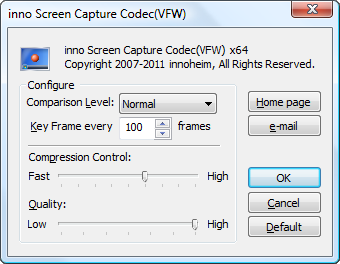
[inno Screen Capture Codec]
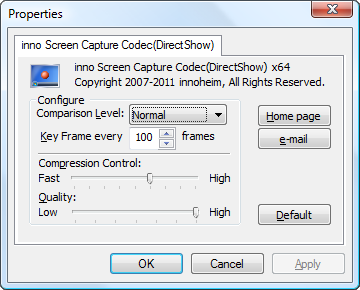
[iSCC Encode Filter]
Basic settings for DirectShow and VFW are identical. You can change settings for Comparison Level, Key Frame, Compression Control and Quality. You can always click the Default button to reset to the default settings.
- Comparison Level: Steps for comparing between frames. If it's set too high, more frames will be compared.
- Key Frame every *** frames: Setting intervals between key frames. If you set the interval value smaller, you get a faster seek speed but the file size will get bigger. If you set the value to 0, the first frame will be the only key frame.
- Compression Control: Fast means faster compression speed and lower compression rate. Higher means slow compression speed and higher compression rate.
- Quality: The default value is High and it's lossless compression. If you change it to Low, your system may slow down so it's not recommended for real time recording. You can change the Quality value a step at a time to determine the appropriate value for your recording.
Please note that if you are converting an AVI file, you may change the Comparison Level to High, Key Frame to 300, and Compression Control to High in order to minimize the file size.